Open the Scan page
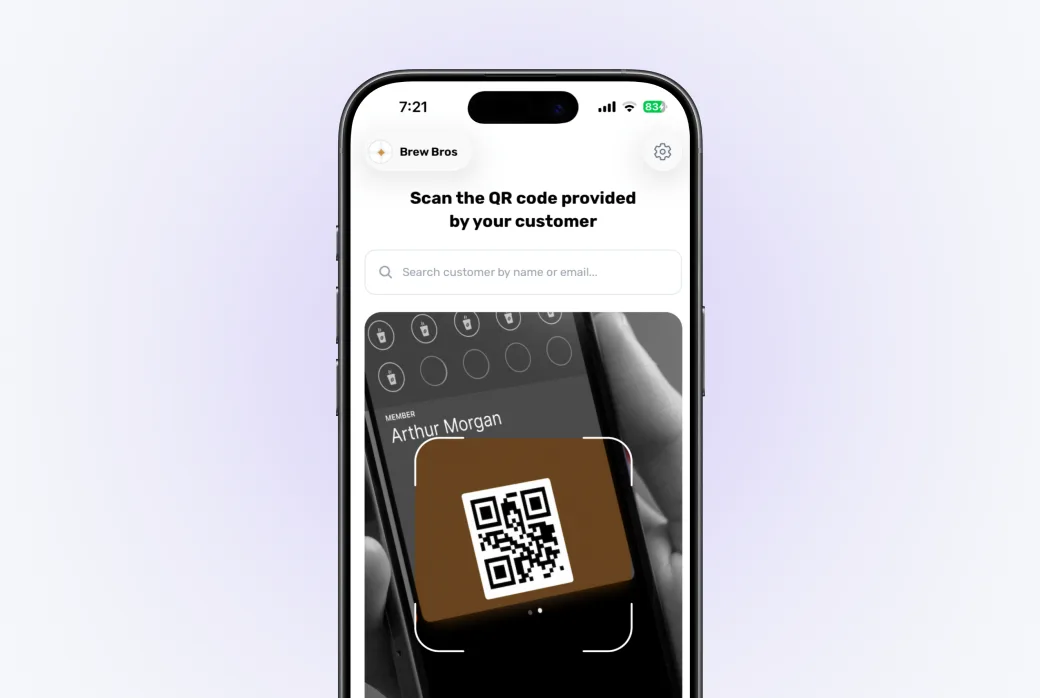
In the dashboard, go to Scan. This is the screen you (or your staff) will use at the counter every day. There are two ways to find the customer:
1
Scan their QR code
The customer shows the loyalty card from their Apple or Google Wallet, every pass has a QR code. Point the camera at it.
2
Or search by name or phone
Phone left at home? Use the search box to find the customer by name or phone number instead.
Add the stamps
Both paths lead to the customer's screen, which shows:
- current stamps and how many slots the card has,
- their last visit,
- a birthday badge if today is their birthday,
- a warning if some of their stamps are about to expire.
Pick how many stamps to give and confirm. The customer's wallet pass updates automatically and they get a push notification.
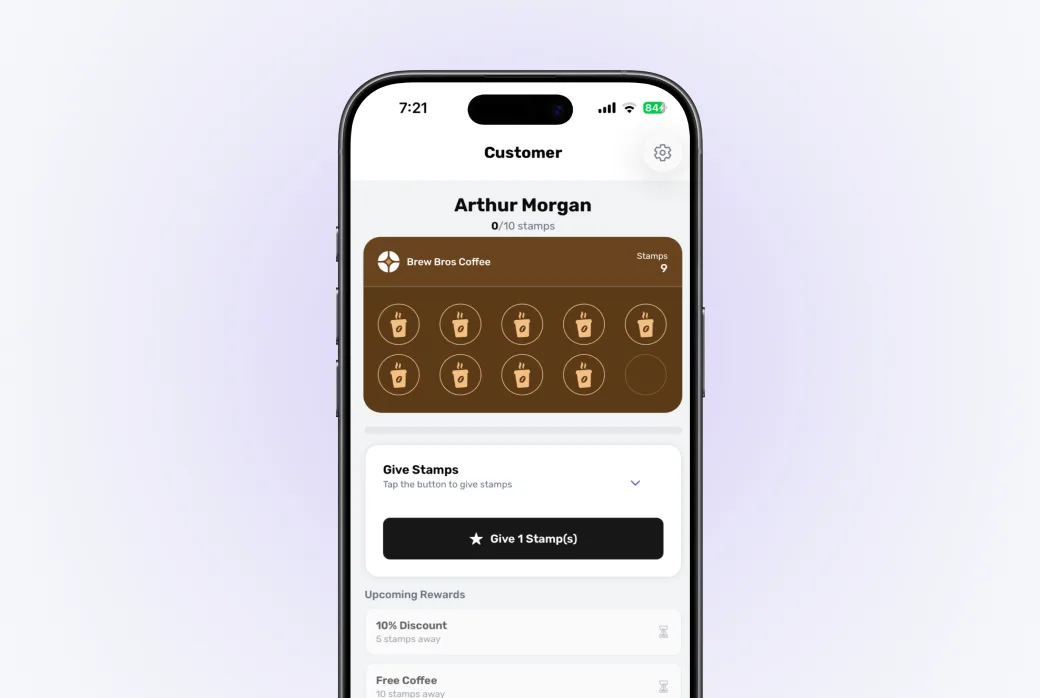
You can't overfill a card: the quantity is capped at the remaining empty slots. When the card is full, the customer redeems a reward first, that frees up slots for new stamps.